
Industry News
One Click From Compromise: How Microsoft Is Quietly Locking Down OAuth App Consent
Microsoft has spent twelve months moving OAuth app consent from users to admins, and the latest wave just landed. Here is what changed, why, and the existing app grants the new defaults do not touch.
Stephen Devlin · · 10 min read
In April, attackers got into Vercel's internal systems through a malicious OAuth app posing as a third-party AI tool. Around the same time, a phishing-as-a-service platform called EvilTokens compromised more than 340 Microsoft 365 organisations in five weeks without stealing a single password. In July, Microsoft published guidance on ShinyHunters abusing OAuth grants to raid SaaS platforms. Three different campaigns, one entry point: a user clicked Accept on an app permissions prompt.
Microsoft has been responding, quietly. If someone in your organisation tried to connect a task manager, a contacts sync tool, or an AI meeting assistant in the last few weeks and hit a screen asking for admin approval instead of the familiar permissions prompt, that is why. Nothing is broken. Nobody changed a setting in your tenant. Microsoft moved the defaults, and the latest wave finished rolling out in early July.
If you run identity for a Microsoft 365 tenant, this post covers what changed, why Microsoft keeps tightening this particular screw, and the one thing the new defaults do not fix that should be on your list this week.
What Actually Changed
Microsoft Entra has always let you decide whether ordinary users can consent to third-party OAuth applications on their own. For years the default answer was yes, for any app requesting any delegated permission. That default has been dismantled in three waves.
Files.Read.All, Files.ReadWrite.All, Sites.Read.All and Sites.ReadWrite.All.Contacts.ReadWrite, Contacts.ReadWrite.Shared, Contacts.Read.Shared, People.Read, Tasks.Read, Tasks.Read.Shared, Tasks.ReadWrite and Tasks.ReadWrite.Shared. This is the wave that just landed.Three things to be precise about, because the Message Center posts bury them:
- This only affects tenants using the Microsoft-managed consent policy. If you have ever set a custom consent policy, or explicitly chosen "allow all" or "disable user consent", nothing changed for you.
- Existing consents keep working. Apps that users approved before each wave continue to run with whatever they were granted.
- Users are not blocked from using these apps. New consent requests are redirected to admin approval instead of being silently granted.
Why Microsoft Keeps Tightening This
Consent phishing does not steal passwords. It steals permission. The attacker registers a legitimate-looking OAuth app, sends the target a link, and the victim signs in through the real Microsoft login page with the real MFA prompt. The only malicious step is the consent screen, where the user grants the attacker's app Mail.Read, offline_access, or worse. From that point the attacker holds tokens that survive password resets and never trip an MFA challenge again.
The campaigns in the opening were not outliers. Consent phishing has become a product category, sold as a subscription with support and uptime guarantees, and it works against organisations that have done everything right on authentication. Passkeys and phishing-resistant MFA do nothing here, because the sign-in is genuine. The failure happens one click later.
Seen against that backdrop, the consent default changes are Microsoft closing the cheapest attack path: if a user cannot grant mail, file, contact or task access on their own, a consent phish has to get past an administrator instead.
The Operational Reality
The immediate effect is more admin consent requests. How much friction that creates depends on one setting: the admin consent workflow. If it is enabled, users get a "request approval" button and the request lands with named reviewers. If it is not, users hit a dead end that tells them to ask their admin with no route for doing so, and in my experience that is where shadow IT workarounds start. People do not stop wanting the tool. They find a way around the control instead, usually by forwarding corporate mail to somewhere less protected.
The second-order risk is reviewer fatigue. A queue of consent requests, each one blocking a colleague's work, creates pressure to approve reflexively. An admin who rubber-stamps every request has recreated the original problem, except now each grant carries admin authority. Common mistakes worth naming:
- Approving based on the app's display name and logo, both of which the app publisher controls entirely.
- Not distinguishing between a verified and unverified publisher.
- Granting admin consent (which applies tenant-wide, for every user) when a single user needed access.
- Treating
offline_accessas harmless boilerplate. It is the permission that turns a one-time grant into standing access via refresh tokens.
Where These Settings Live in the Portal
Everything discussed so far is controlled from one place: the Entra admin center, under Enterprise applications > Consent and permissions. There are three blades, and they answer three different questions.
User consent settings: who can say yes
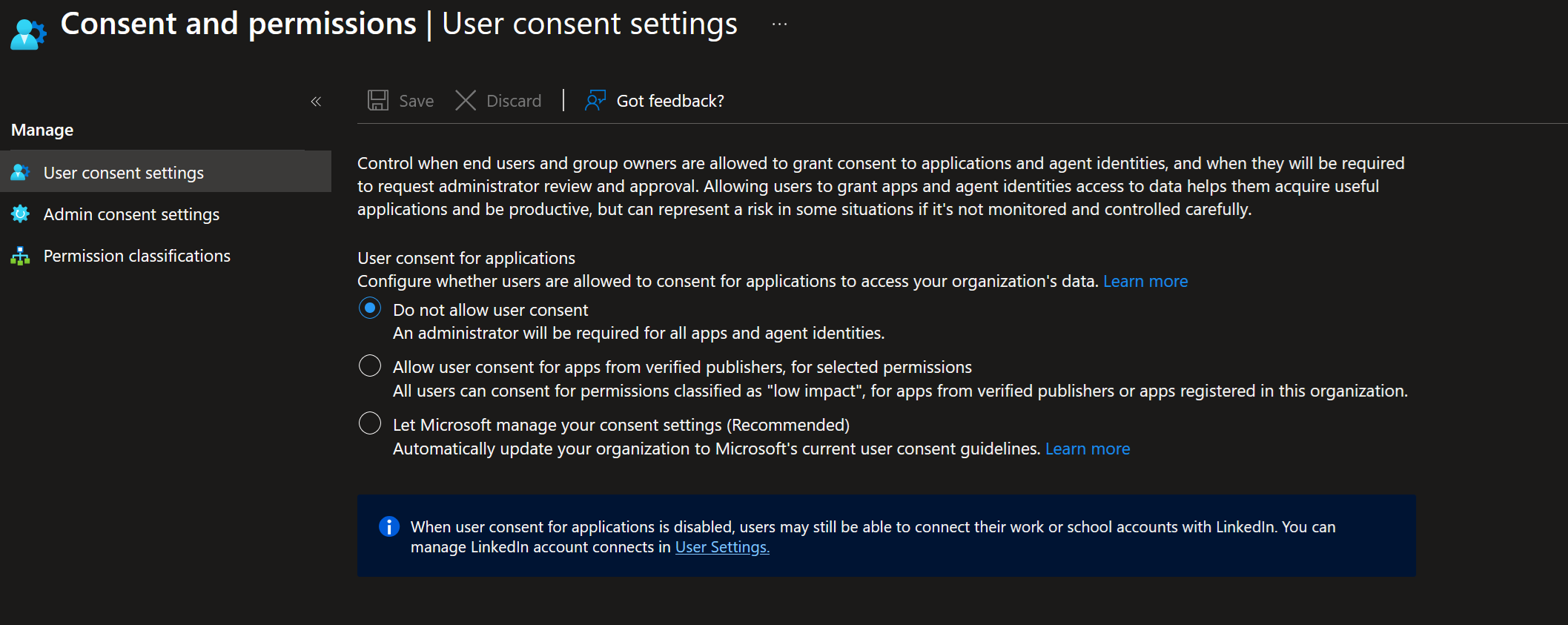
This blade decides whether ordinary users can consent to applications at all. Three options, and the wording matters:
- Do not allow user consent. Every app, every permission, goes through an administrator. The most secure option on paper, and the one most likely to generate shadow IT if your approval process is slow. Choose this only if you have reviewers who respond within a working day.
- Allow user consent for apps from verified publishers, for selected permissions. Users can self-serve, but only for apps from verified publishers (or apps registered in your own tenant) and only for permissions you have classified as low impact. This is the control-it-yourself option, and it depends entirely on the Permission classifications blade below.
- Let Microsoft manage your consent settings (Recommended). The Microsoft-managed policy this whole post is about. Choosing it means Microsoft adjusts your consent posture as the threat landscape changes, which is exactly what the three waves have been.
Two details worth noticing in this blade. The description now talks about "applications and agent identities", which is Microsoft quietly extending the same consent model to AI agents. And the Enable user consent for popular Mail clients checkbox under the Microsoft-managed option is the Mail client policy that MC1304287 references: it is the carve-out that lets users keep consenting to a short, Microsoft-curated list of known mail apps even though mail permissions are otherwise admin-only now.
Best practice: stay on the Microsoft-managed option unless you have a concrete reason not to. If approval volume forces you off it, move to the verified-publisher option with deliberate classifications, never back to open consent.
Admin consent settings: what happens when the answer is "ask an admin"
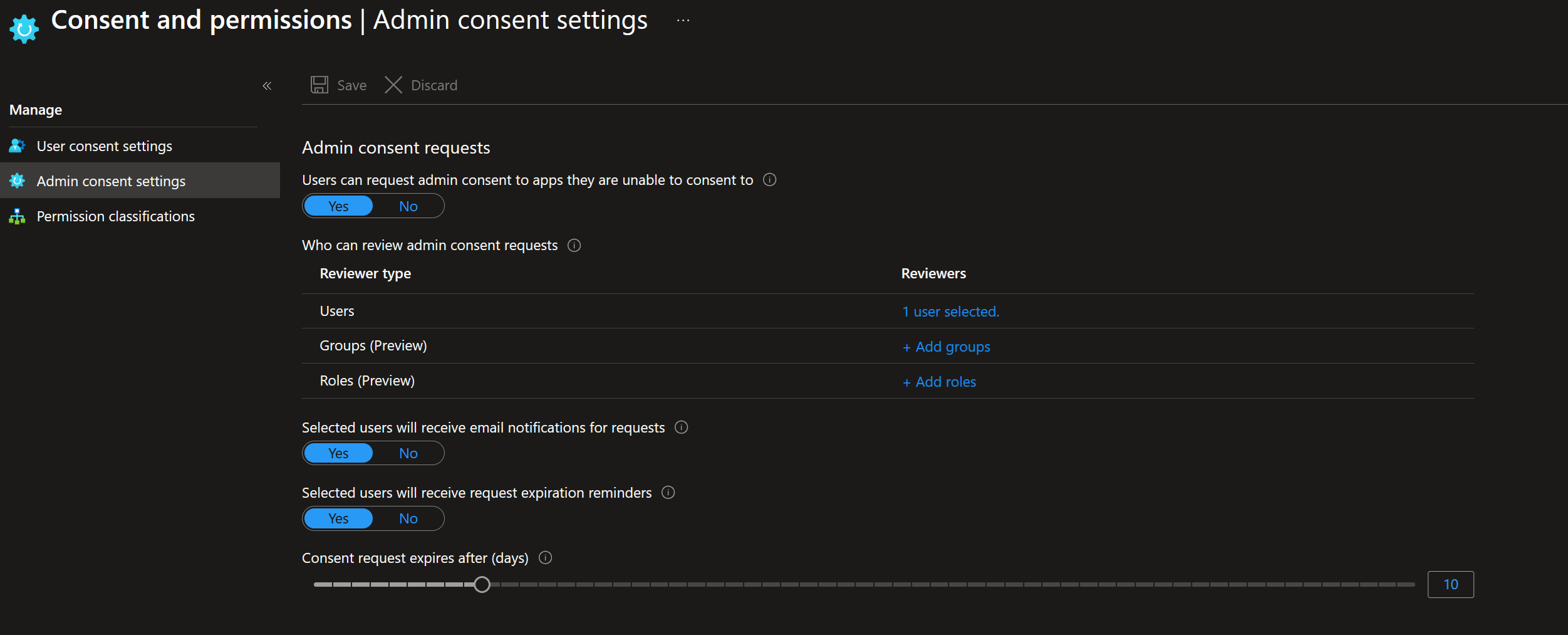
This blade is the admin consent workflow. With the top toggle set to No, a user who hits a blocked consent screen has nowhere to go. Set to Yes, they get a "request approval" button and the request routes to the reviewers you name here. You can assign individual users, and groups and roles are now supported in preview, which is the better long-term choice because it survives people changing jobs.
The remaining settings are operational hygiene: email notifications so reviewers hear about requests without living in the portal, expiration reminders so requests do not silently rot, and an expiry window that controls how long a request stays open.
Best practice: turn the workflow on before the tickets arrive, name at least two reviewers (prefer a role or group over individuals), keep notifications on, and set expiry short enough that a stale request cannot be approved weeks later by someone who lost the context. The full recommended configuration is in step 2 of the checklist below.
Permission classifications: what counts as low risk
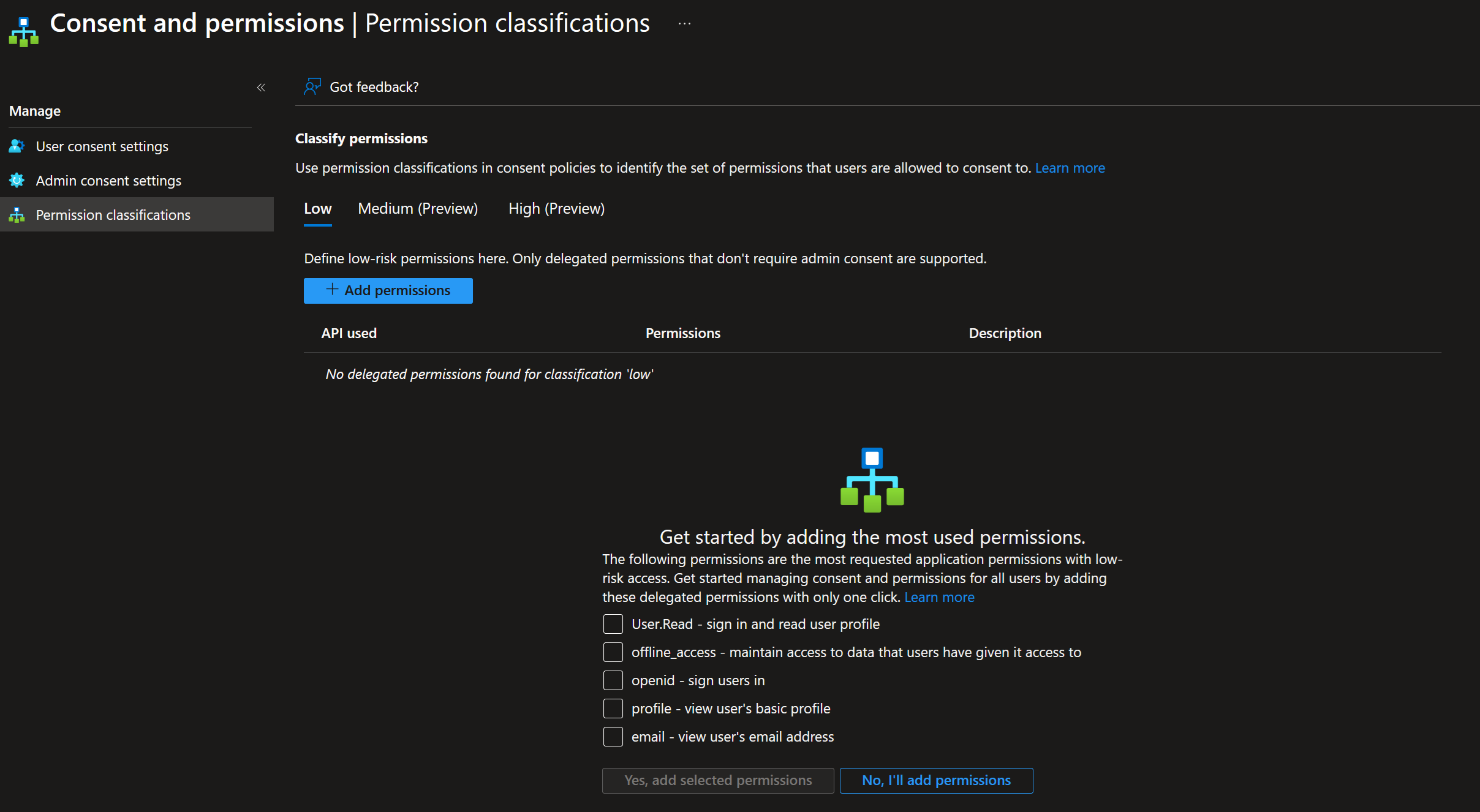
This blade defines what "low impact" means in your tenant, and it is what the verified-publisher consent option reads from. Out of the box the Low list is empty, and Microsoft offers to seed it with the most common sign-in scopes: User.Read, openid, profile, email and offline_access. Medium and High classifications are in preview and exist mainly to help reviewers triage consent requests.
Four of those five suggestions are genuinely low risk: they let an app sign a user in and see basic profile details. The fifth is the one to pause on. Microsoft lists offline_access as a suggested low-risk permission because on its own it grants no data access, but it is also the scope that converts whatever else an app holds into standing access via refresh tokens. Classifying it as low means every verified-publisher app your users approve keeps its access indefinitely without re-authenticating.
Best practice: accept User.Read, openid, profile and email as your Low classification. Leave offline_access off the list and let it surface in admin review, where the question "does this app really need permanent access" belongs.
What to Do This Week
1. Confirm which consent policy your tenant is actually on
Connect-MgGraph -Scopes "Policy.Read.All"
(Get-MgPolicyAuthorizationPolicy).DefaultUserRolePermissions |
  Select-Object -ExpandProperty PermissionGrantPoliciesAssigned
Here is what that looks like against a real tenant, and why the output is less obvious than you might expect:
The trap in this output is that the two lines it does show are noise, and the signal is a line that is not there. ManagePermissionGrantsForOwnedResource entries govern resource-specific consent for Teams chats and teams that users own. They appear in almost every tenant and have nothing to do with application consent. Your consent posture lives in the ManagePermissionGrantsForSelf line:
The tenant in the example above has no ManagePermissionGrantsForSelf line at all, so user consent is switched off entirely and every application request is riding on the admin consent workflow.
2. Enable and staff the admin consent workflow
The walkthrough above covers what each setting does. If you action one thing from this post today, this is it. Here is the configuration that works for most organisations:
| Users can request admin consent | Yes. Without it, blocked users have no route to ask, and they give up or go around you. |
| Who can review requests | A group or the Cloud Application Administrator role, never a single named person. Minimum two reviewers so leave does not stall the queue. Reviewers must hold Global Administrator, Application Administrator, or Cloud Application Administrator. |
| Email notifications | Yes. Reviewers should not need to live in the portal to notice a request. |
| Expiration reminders | Yes. A silent expiry looks identical to a rejection from the user's side, and they will not ask twice. |
| Request expires after | 14 days. Long enough to survive annual leave, short enough that nobody approves a request whose context they have lost. Thirty is the ceiling, not the target. |
The settings are the easy half. Agree with your reviewers what a review actually checks, so approvals are consistent whoever picks the request up:
- Is the publisher verified, and does the publisher match who you think makes the app?
- Are the requested scopes proportionate to what the user says the app does? A meeting notes tool asking for
Files.ReadWrite.Allis a question, not a formality. - Is
offline_accessin the list, and does this app genuinely need standing access when nobody is signed in? - Does one user need this, or is tenant-wide admin consent actually justified? Default to consenting for the requesting user only.
Set an expectation that requests get an answer within one working day, because slow approvals are what turn a blocked prompt into a workaround. And tell the service desk the workflow exists, because the tickets will say "the app is broken" rather than "I need a consent approval".
3. Audit what already has access
This is the step most organisations skip, and it is the one that matters most.
The blind spot: the new defaults only gate new consent requests. Every grant made before the waves rolled out is still live, still refreshing tokens, and completely unaffected by any of this.
Microsoft tightened the front door, but everything that walked in during the years the door stood open is still inside. Enumerate the existing grants:
Connect-MgGraph -Scopes "Application.Read.All","DelegatedPermissionGrant.Read.All"

$risky = 'Mail.Read','Mail.ReadWrite','Mail.Send','Files.Read.All',
         'Files.ReadWrite.All','Sites.ReadWrite.All','EWS.AccessAsUser.All',
         'offline_access'

Get-MgOauth2PermissionGrant -All | Where-Object {
  $scopes = $_.Scope -split ' '
  ($scopes | Where-Object { $risky -contains $_ })
} | ForEach-Object {
  $sp = Get-MgServicePrincipal -ServicePrincipalId $_.ClientId
  [pscustomobject]@{
    App         = $sp.DisplayName
    Publisher   = $sp.VerifiedPublisher.DisplayName
    ConsentType = $_.ConsentType   # 'Principal' = a user consented
    Scopes      = $_.Scope
  }
} | Sort-Object App | Format-Table -AutoSize
Here is a curated slice of what that returns against a real tenant:
This slice shows every pattern worth hunting for. The blank Publisher entries are apps with no verified publisher, including one named to look like an Adobe product sitting on Files.ReadWrite.All, Mail.Read and offline_access. Apple Internet Accounts appears six times because each Principal row is a separate user consent, and its EAS.AccessAsUser.All and EWS.AccessAsUser.All scopes are exactly the legacy protocols wave 2 moved behind admin consent; these grants predate the change, so they keep working. And API Explorer shows what one user could approve under the old defaults: a single consent carrying more than fifteen scopes across notes, files and sites.
Principal consents are the population the new policy would have sent to review, so they deserve scrutiny first, and AllPrincipals rows carry the most weight because they apply to everyone in the tenant. Start with unverified publishers holding mail or file scopes plus offline_access, because that combination is the standard consent phishing profile.
If you would rather not maintain scripts for this, the AccessLens OAuth Governance dashboard does the same enumeration continuously: it pulls every consented app in the tenant, scores each one on risky scopes, refresh token persistence, publisher verification and external ownership, and specifically flags apps that were user-consented and bypassed admin review. The free tier includes the inventory view, so seeing which apps were approved under the old defaults costs nothing.
4. Decide your policy posture deliberately
Staying on the Microsoft-managed policy is a reasonable default, and Microsoft will keep adjusting it for you, as three waves in twelve months demonstrate. If the approval volume becomes unmanageable, the right answer is a custom app consent policy with granular rules (for example, allow user consent for verified publishers requesting low-impact scopes only), not switching consent back to open.
5. Close the loop with Conditional Access
Consent policies govern what an application can be granted. Conditional Access governs the sign-in that gets a token in the first place. The wave 2 changes around EWS, ActiveSync, POP3 and IMAP4 land differently if you already block legacy authentication with CA, and workload identity policies can put risk-based controls on service principals themselves. If you have not reviewed those areas recently, a gap analysis across your CA estate is the natural companion to a consent audit.
The Short Version
Microsoft has spent twelve months moving OAuth consent from "users decide" to "admins decide" for anything touching mail, files, sites, contacts, tasks and Teams data. The change is sound, the rollout has been quiet, and the defaults now match what security teams have been configuring manually for years. But defaults only govern the future. The consent decisions your users made over the past decade are still standing, and no Message Center post is coming to fix those for you.
Under a minute inside the AccessLens OAuth Governance dashboard: the app inventory, risk scoring, and the consents that bypassed admin review.
See what already has access to your tenant. The AccessLens OAuth Governance dashboard inventories every consented app, scores the risky ones, and flags grants that bypassed admin review. The inventory view is on the free tier. Try AccessLens and check the front door and the guest list.
Sources
- Microsoft Learn: Manage app consent policies in Microsoft Entra ID
- Microsoft Learn: Configure how users consent to applications
- Microsoft Learn: Configure the admin consent workflow
- Microsoft Learn: Protect against consent phishing
- MC1304287: Upcoming secure-by-default changes for Exchange APIs
- MC1163922: Upcoming Secure by Default settings changes for Exchange and Teams APIs
- Microsoft Security Blog: Defending SaaS-based applications against ShinyHunters OAuth abuse