
Tutorials
Getting the Most Out of the AccessLens Free Tier
The Free tier is a working analyzer, not a trial. A walkthrough of every Free feature in the order you should use them, with annotated screenshots from the Demo tenant and a 30-minute first session you can run today.
Stephen Devlin · · 8 min read
The Free tier is not a trial. It is a working analyzer that gives you enough to genuinely improve your Conditional Access posture without ever entering a card. Ten policies covers more tenants than people expect, and the analyzer surfaces the same security signals on the Free plan as it does on the paid ones. The gating sits around scale, multi-tenant work, and the heavier compliance and simulation features, not around the quality of the analysis itself.
This guide walks through everything the Free tier gives you, in the order you should look at it on your first session. Every screenshot below comes from the Demo tenant on accesslens.co.uk, which anyone can open from the homepage without signing in.
What You Actually Get on Free
Before going page by page, the honest scope:
In Free you get the Dashboard, the Policies analyzer, the Flow view for any individual policy, the Baseline Builder, the Change Tracker, the Sign-In Log Analyzer (capped at 100 logs per pull), and the OAuth App inventory in view-only mode. Conflict detection is present but only the basic checks fire. The matrix view is read-only.
That is enough to run a meaningful baseline review of a small tenant in an afternoon. Below is how to do it.
1. Start with the Dashboard
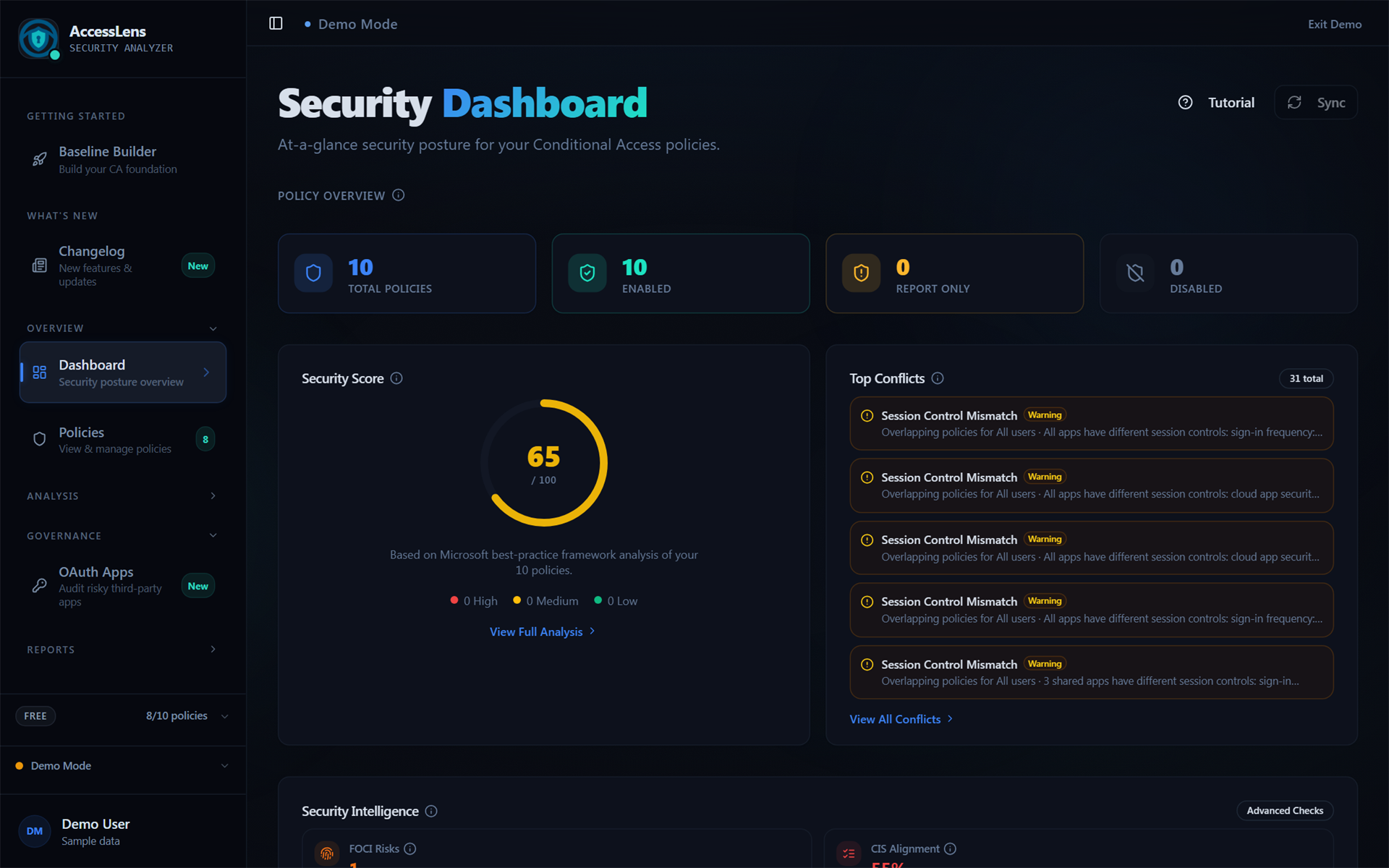
The Dashboard is the first screen you land on after activating Demo mode or signing in. It is the only screen on the platform designed to be read in under thirty seconds.
There are four things worth looking at on this screen, and the order matters:
Enabled, Report Only and Disabled. If Disabled is non-zero, you have shelf-ware policies that someone should either re-enable or delete.
Weighted across Microsoft, CIS, CISA and NCSC framework checks. The number is less interesting than what is dragging it down. The breakdown below the dial tells you that.
Basic conflict detection runs on Free. The most common hit you will see is Session Control Mismatch, where two policies target the same app with different session settings. That is a real problem worth fixing before you do anything else.
FOCI risks, CIS alignment, scope leakage and OR-operator usage. These are subtle misconfigurations that the standard frameworks do not always catch. Worth scanning even if your headline score looks healthy.
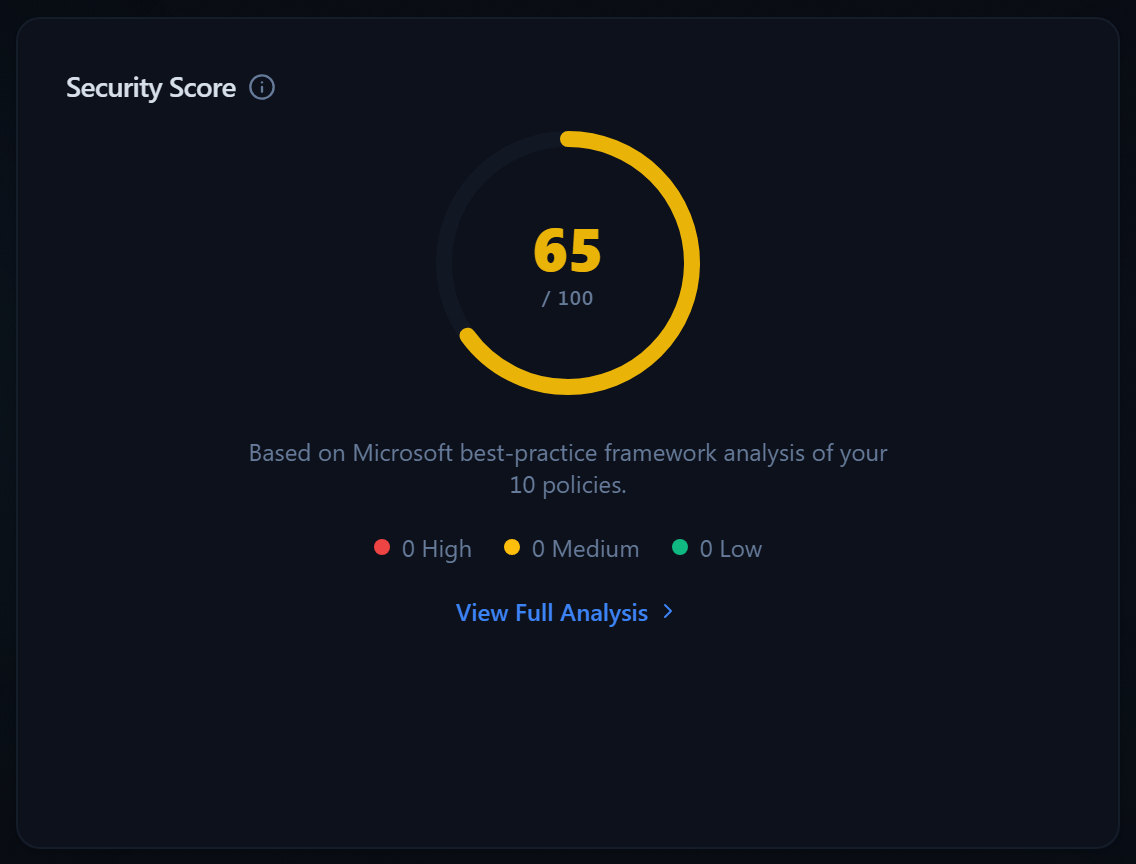
The bottom-left badge in the sidebar shows your current policy count against the 10-policy limit. If you are close to the cap, that is your signal to start pruning before you sync new policies.

2. Walk the Policies List
Click Policies in the sidebar. This is the working surface, not the Dashboard.
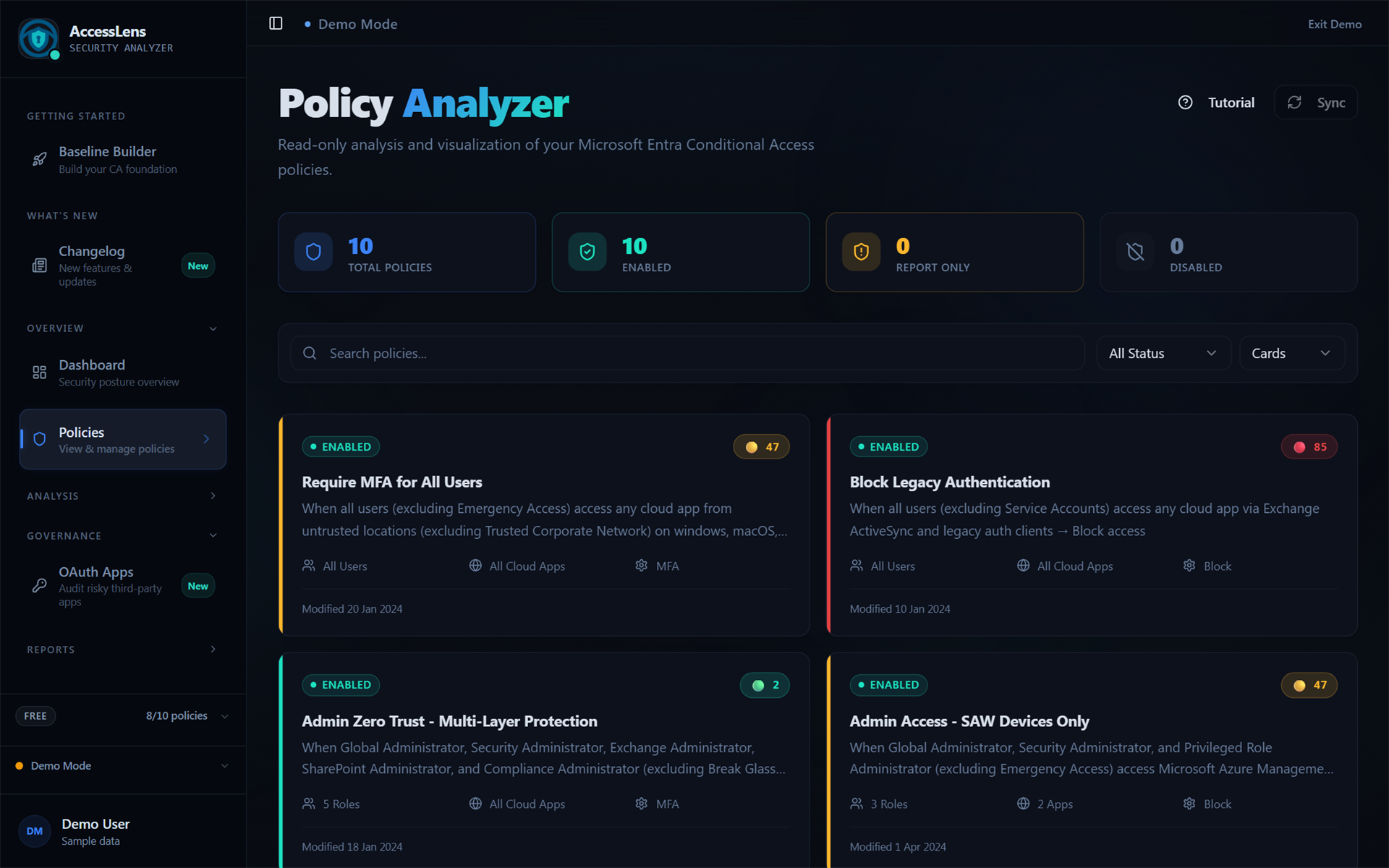
Each card shows the policy state (Enabled, Report Only, Disabled), a risk score in the top right, and a short description of who the policy targets, which apps, and what control it applies. The risk score is generated from how broadly the policy applies, whether MFA is required, whether sign-in or user risk is in scope, and a few similar factors.
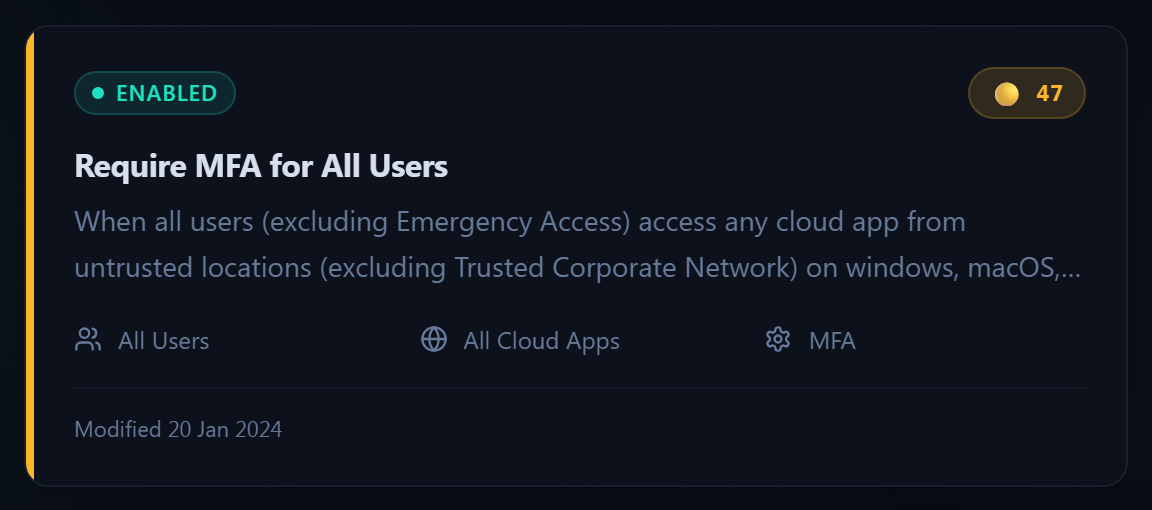
What to look for on a first pass:
- Policies still on Report Only that were meant to go live months ago
- Broad MFA policies that quietly exclude All Cloud Apps from one resource
- Block Legacy Authentication present but disabled, or scoped to a pilot group
- Admin protection policies that exclude Emergency Access accounts but do not also require phishing-resistant MFA for the rest of the admin set
The Search bar filters by policy name, and the All Status dropdown lets you isolate Report Only or Disabled policies in one view. Use Cards while you are still getting familiar with the tenant. Switch to the list density later when you know what you are scanning for.
3. Open the Flow View for Anything That Looks Off
Click any policy on the list to open the detail page. This is the screen that exists nowhere else: a readable, interactive flow of a single policy from the trigger condition to the grant decision.
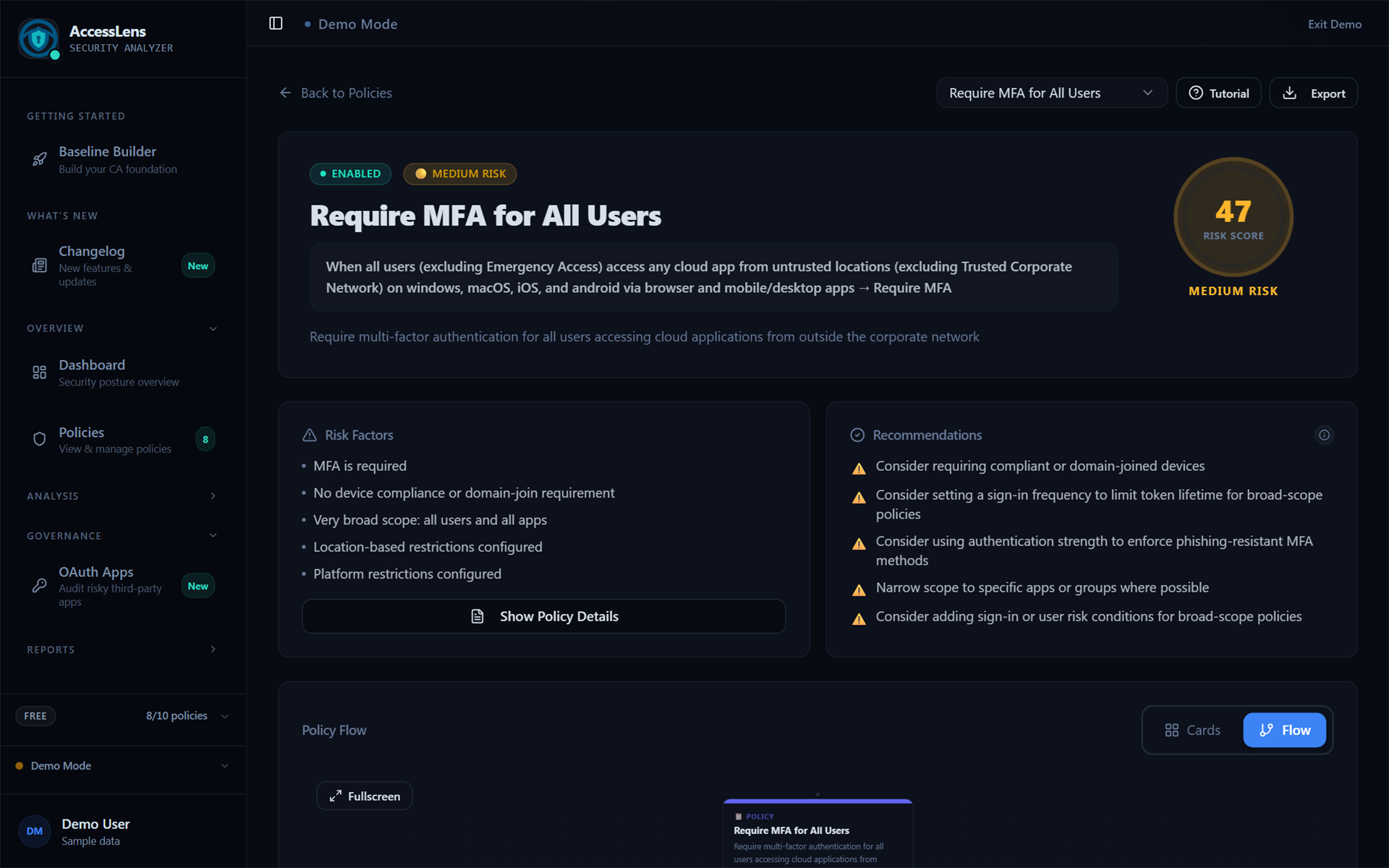
Three things on this page do most of the work:
The Risk Factors panel on the left lists the specific reasons the score landed where it did. "MFA is required" is good, "Very broad scope" is the kind of thing you want to weigh against the next item.
The Recommendations panel on the right is generated from CIS, NCSC and Microsoft guidance for the policy shape. "Consider requiring compliant or domain-joined devices" is a typical suggestion for a broad MFA policy. They are recommendations, not commands. Read them, then decide.
The Policy Flow at the bottom is the visualization. The default view is collapsed; click Fullscreen to expand it and follow the logic from trigger through conditions to the grant decision. Once you have looked at one policy this way, the rest of the analyzer makes more sense.
4. Run the Baseline Builder Before You Make Any Changes
The Baseline Builder is the single most underused feature on the Free tier. It is a guided audit of your tenant against a framework of your choice.
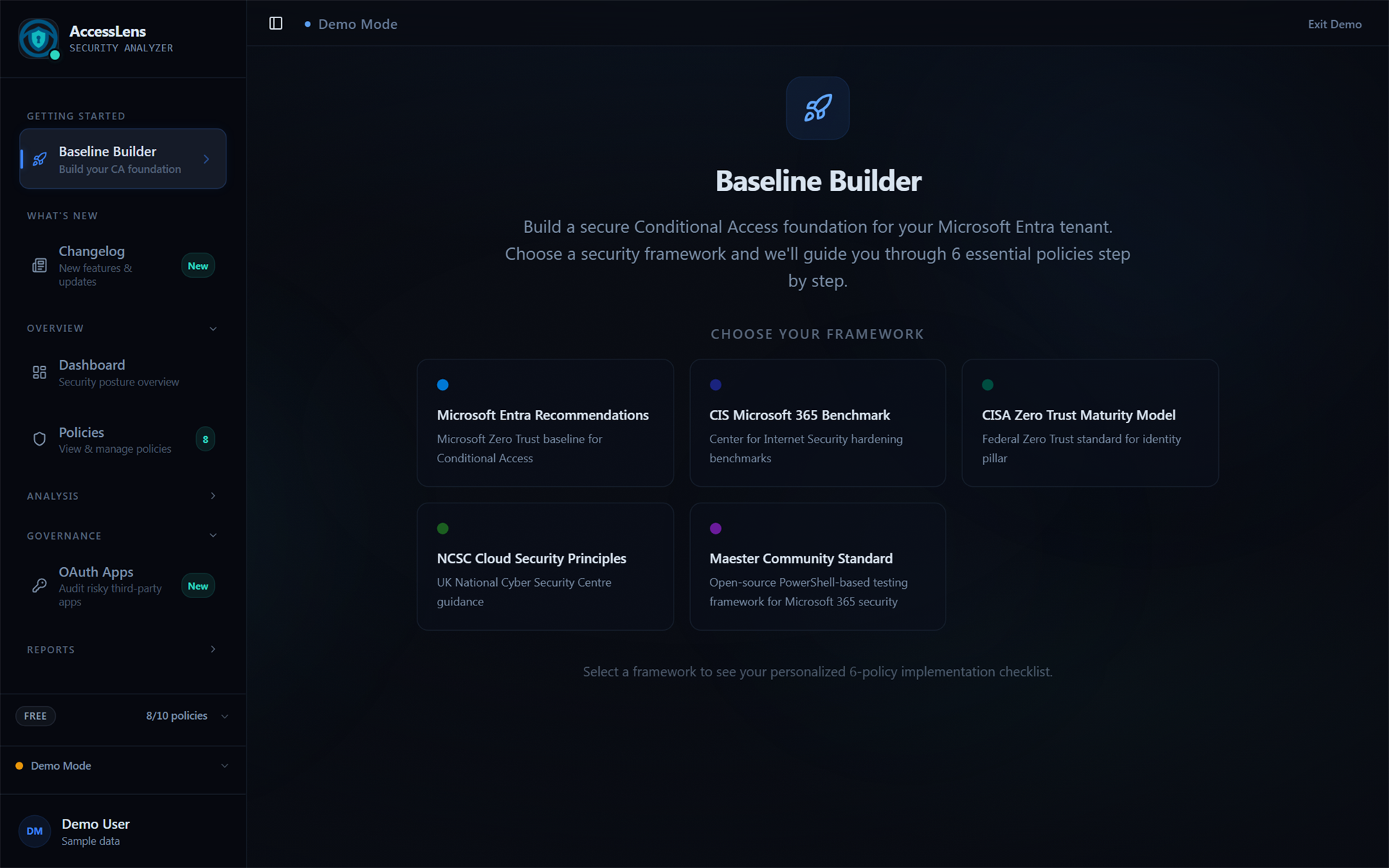
You pick a framework, the Builder walks you through six essential policies, and at each step it tells you which of your existing policies satisfies the check and which do not. It is the closest thing to a gap analysis you get on Free.
Practical guidance on which framework to pick:
Pick one, work through it once, and you have a defensible starting baseline that maps cleanly to a recognised standard.
5. Check the Change Tracker Once a Month
Change Tracker surfaces upcoming Microsoft Entra changes that will affect how your existing CA policies behave. It is read-only on every tier, including Free.
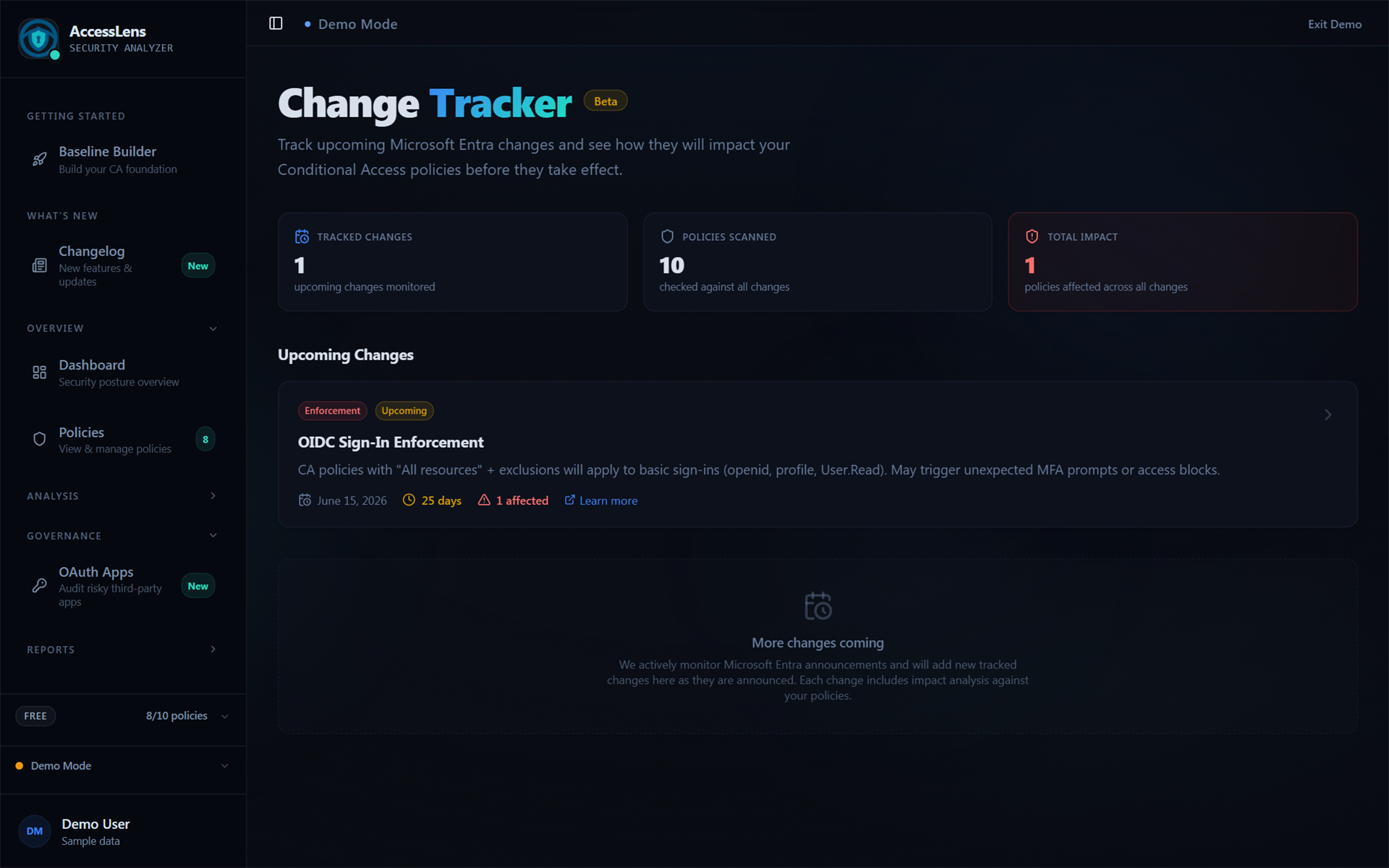
The headline tracked change right now is the OIDC Sign-In Enforcement landing 15 June 2026. The tracker tells you how many of your policies use "All resources" with exclusions, which is the configuration that will start applying to basic sign-ins, openid, profile and User.Read scopes once enforcement is live. If the Total Impact figure is non-zero, you have homework before that date.

You do not need to check this weekly. Once a month is fine. The tracker exists so you do not get blindsided.
6. The Sign-In Log Analyzer Is Genuinely Useful Even at 100 Logs
The Sign-In Log Analyzer on Free is capped at the last 100 sign-ins, which sounds limiting until you actually use it. For a small tenant, 100 logs is often a full day or two of activity, and the analyzer cross-references each sign-in against your CA policies to tell you which one applied, what the outcome was, and which policies blocked or allowed access.
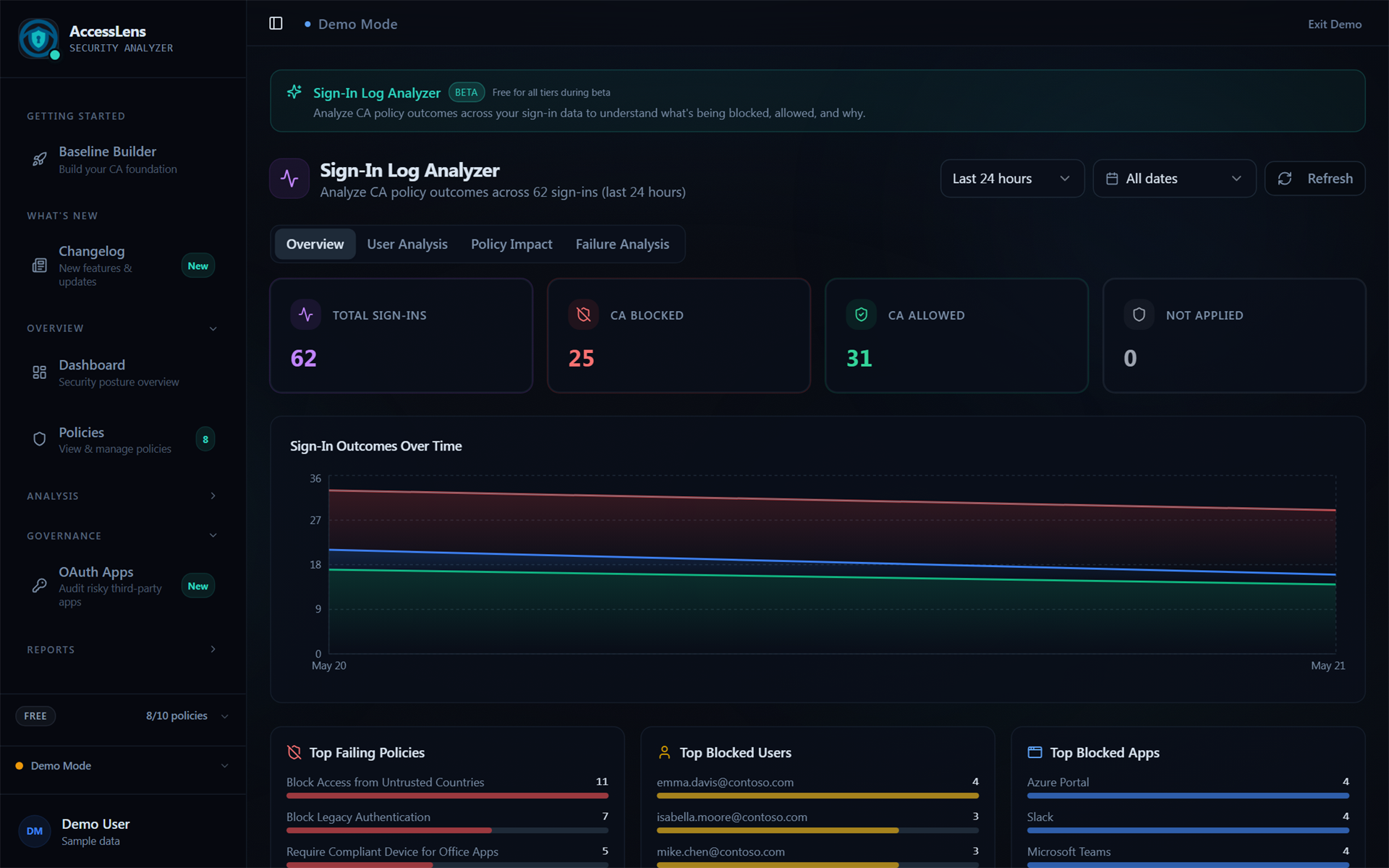
The tabs across the top split the data four ways: Overview gives you the totals and a trend line, User Activity shows top blocked users, Policy Impact tells you which of your policies are doing the work, and Failure Analysis surfaces the most common reasons sign-ins are being blocked or interrupted.
Three checks worth running:
The 100-log cap means you will not catch quarterly trends. For the day-to-day "did my policy change break anything" check, it is enough.
7. The OAuth App Inventory Is Worth Skimming Even Without the Audit Engine
Free gives you the OAuth Governance dashboard in view mode. You can see every consented app, the risk distribution, unverified publishers, and which apps are flagged as critical. You cannot trigger the audit engine to scan in detail, but the inventory alone tells you something.
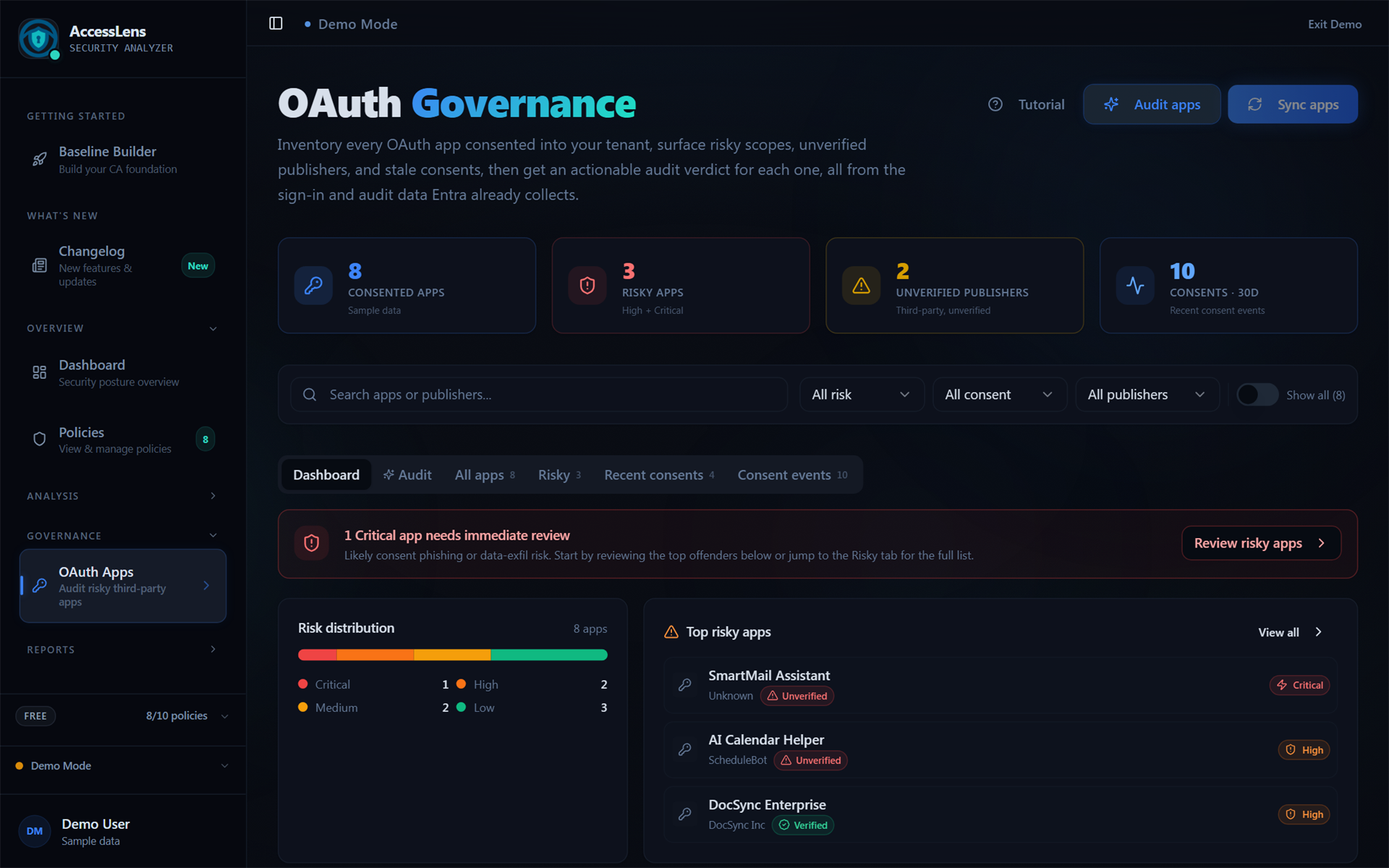
What to scan for:
The Unverified Publishers count is the most actionable. If it is greater than zero, those are apps that have full delegated permissions to your tenant from publishers Microsoft cannot verify. That is worth investigating regardless of tier.
The Risky Apps panel will surface apps with broad scopes (Mail.ReadWrite, Files.ReadWrite.All, Directory.Read.All). Most of those are legitimate. Some are not. The Free view does not tell you which is which, but knowing they exist is half the work.
What Free Does Not Include
Being honest about this matters more than soft-selling around it. The things you cannot do on Free:
- What-If Simulator runs
- Full Gap Analysis (50+ checks)
- Compliance framework reports
- CSV or PDF exports
- Report-Only Insights
- Advanced conflict detection
- Scheduled reports
- OAuth Audit engine
- Full Dashboard with security score
- All 10 policies analyzed
- Flow view per policy
- Baseline Builder across 5 frameworks
- Change Tracker for upcoming Entra changes
- Sign-In Log Analyzer (100 logs)
- OAuth inventory view
- Basic conflict detection
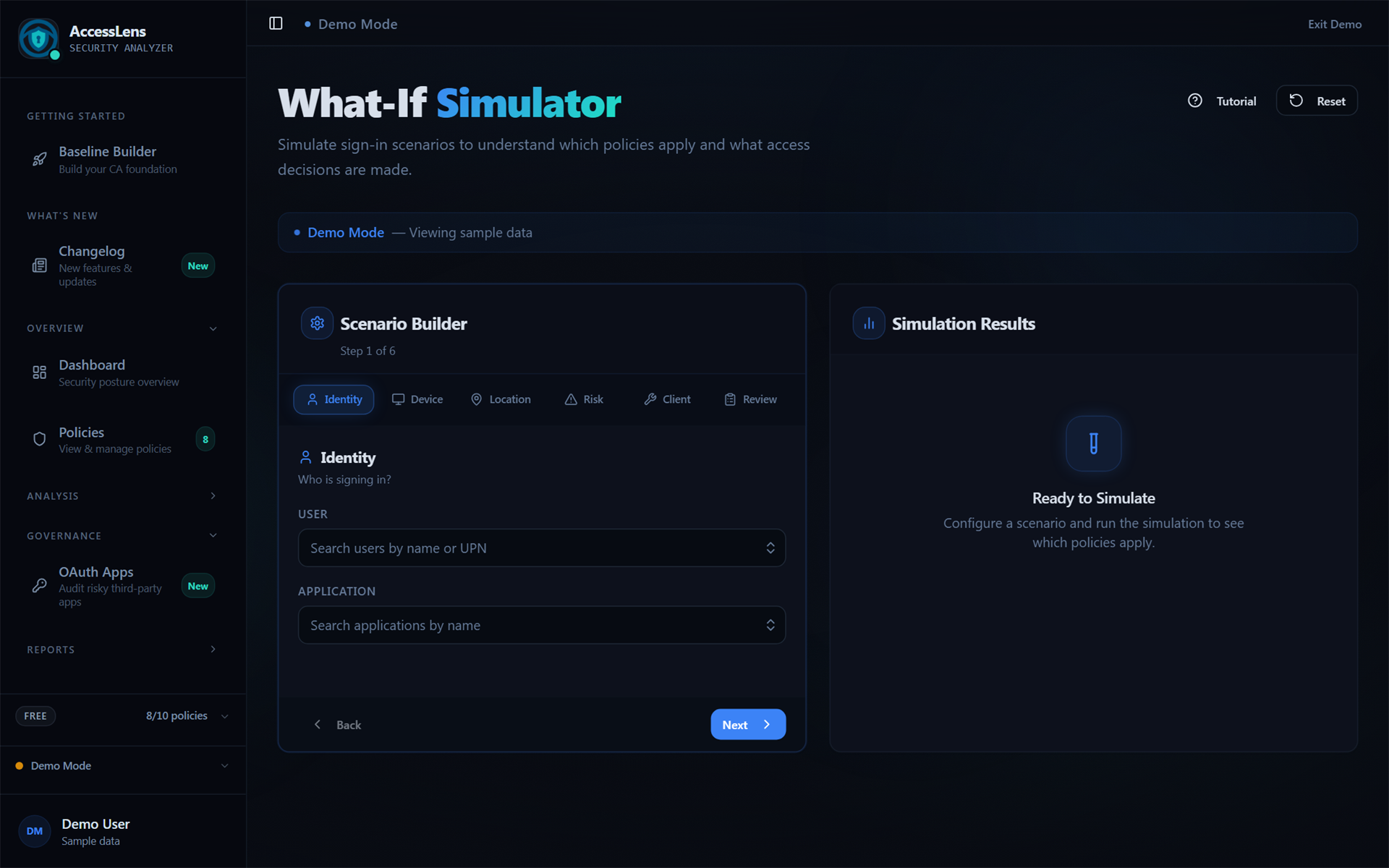
Some of the gated pages are visible in preview mode so you can see what they would look like populated. The What-If Simulator is a good example: you can open the page and walk the scenario builder, but you cannot run a real simulation against your policies.
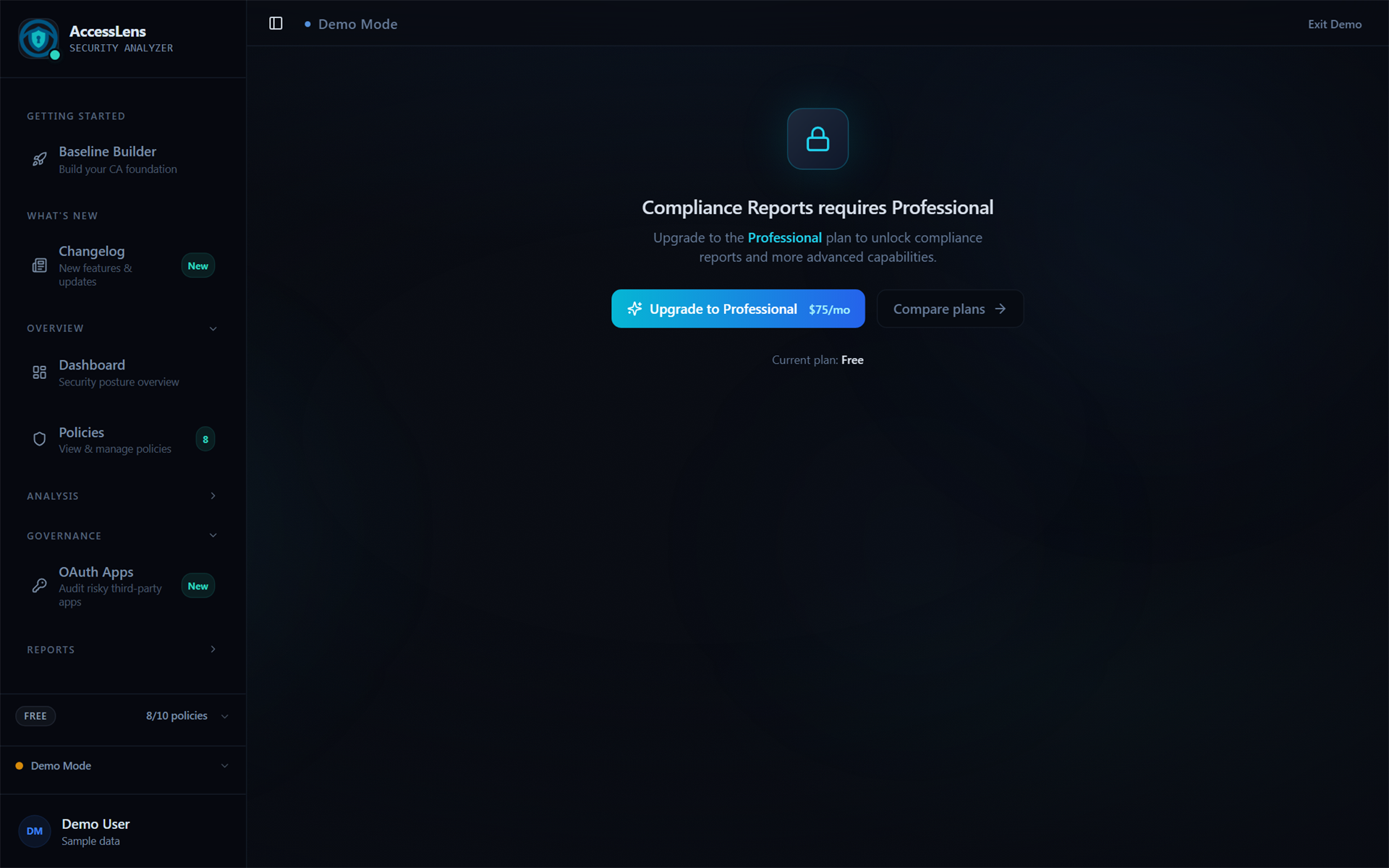
When you try to open the Reports page, the gate is more explicit. This is what it looks like:
A Sensible First Session in Under 30 Minutes
If you have just signed up and want a structured way to use the next half hour:
By the end of that you have a documented baseline, a list of three policies worth tightening, and a known answer to whether the June enforcement change applies to you. None of that costs anything.
When the Free Tier Stops Being Enough
There are three signals that you have outgrown Free, and only three.
The first is the policy count. If you sync a tenant and the analyzer caps at 10, you are not seeing the full picture. That alone is reason to step up to Starter for the 25-policy ceiling.
The second is audit pressure. If anyone has asked you for a CIS-mapped report, framework coverage, or anything signed off as evidence, you need the export and compliance features that start at Professional.
The third is operational scale. If you are managing more than one tenant, or you want more than one person looking at the analyzer at the same time, Starter or Professional is the right step.
Until one of those three is true, Free does the job.